




Burning Bridges AI Trend: Put Yourself in the Chandelier Party (Image Guide)
The short version: Start with one clear portrait. Then use an image editor that takes a reference photo to move the person into a late-night party lit by crystal chandeliers. We made the two party images below from a single portrait, at 3 credits per 2K image, and each edit took about 28 seconds. This guide covers the images only: we didn’t generate a video for it. If you want to animate the image, see the optional step at the end.
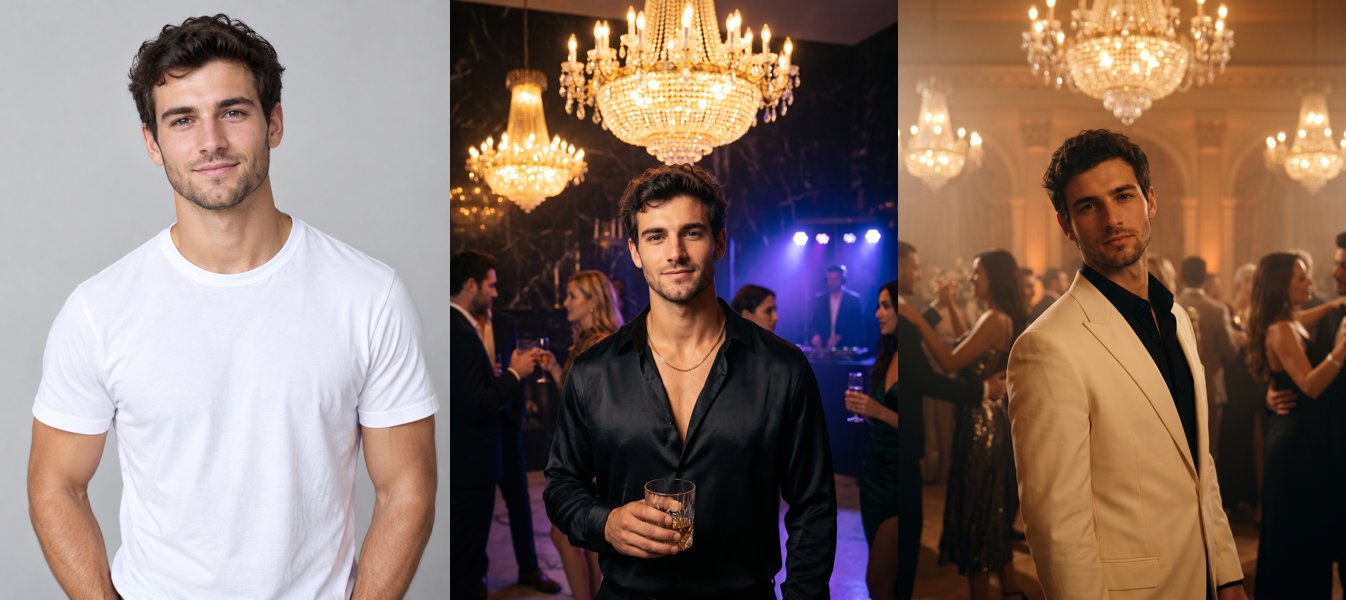
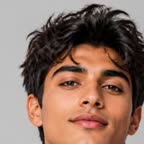
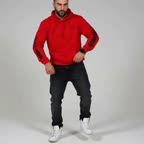
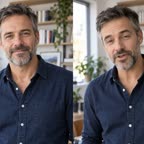
The man in these images is AI-generated, not a real person. Both party images were edited from the plain portrait on the left.
What the Burning Bridges AI trend is
“Burning Bridges” is a Drake song, and its music video is set at a party under chandeliers. Several AI tool sites describe the trend like this: people insert themselves, friends, pets or characters into a chandelier-party scene, then post the clip with the song (LightX, Burning Bridges AI Generator). Those sites sell tools for the effect. We couldn’t confirm from an independent source when or how the trend started.
You don’t need the music video itself. The look is easy to describe: a dark, expensive room, crystal chandeliers, warm golden light, a party going on behind you, and you looking into the camera.
What you need
- One photo of an adult. Waist-up, facing the camera, face clearly visible, even light. Your own photo, or one you have permission to use.
- An image editor that edits from a reference photo. We used Nano Banana 2 in FunGen’s Generator (Image tab, Edit (reference) mode). It’s available on the free plan.
- Credits: 3 credits per image at 2K (2 at 1K, 5 at 4K). Our test used 9 credits: one portrait and two party edits.
Step 1: Start with a plain portrait
We generated the portrait with GPT Image 2 at 2K. If you’re using your own photo, skip this step. The prompt:
Photorealistic waist-up portrait of a stylish man in his late 20s, short curly dark hair, light stubble, wearing a plain white t-shirt, facing the camera with a relaxed confident half-smile, plain light grey studio background, soft even light, sharp focus on the face, one person.
A plain background and simple clothes give the editor the least to fight with. It replaces both anyway.
Step 2: Move them into the chandelier party
Open the Generator, choose Image, then:
- Mode: Edit (reference)
- Ratio: 3:4, a good fit for phone screens
- Resolution: 2K
- Engine: Nano Banana 2
- Reference: your portrait
Every prompt has two parts: the scene and outfit, then the same line asking to keep the face. We added this line to both prompts:
Keep his exact face, facial features, skin tone and hair identical to the reference photo — same person. Photorealistic, cinematic, waist-up.
Change his to her or their to match your photo.
Version 1: the late-night house party
Place him at a lavish late-night house party under huge crystal chandeliers: warm golden light, a dark marble room, he wears an open black silk shirt and a gold chain, holding a glass, looking straight into the camera, shallow depth of field, moody music-video look.
The model added other guests and purple stage lights behind him without being asked. If you want an empty room, say so in the prompt.
Version 2: the crowded ballroom
Place him in the middle of a crowded, glamorous party in a grand ballroom lit by crystal chandeliers: blurred guests dancing behind him, warm amber light and soft haze, he wears a cream suit jacket over a black shirt, head slightly tilted, calm stare into the camera, music-video still.
In both of our results the man stayed recognisably the same as the portrait. That’s two images from one fictional face, so your photo may come out differently.
Optional: turn the image into a video (not tested for this guide)
To get a clip for TikTok or Reels, use the party image as the first frame of an image-to-video model. We didn’t run this step, so we can’t show you a result.
- Which model: On the free plan you can use MiniMax H3, Seedance 2.0 Mini or Seedance 2.0 Fast. They still cost credits.
- What it costs: Video is charged per second. MiniMax H3 is 11 credits a second at 720p (17 at 1080p). Seedance 2.0 Mini and Fast are 21 credits a second at 720p (11 at 480p); they don’t render 1080p, so a 1080p request comes out at 720p and is charged at 720p. A 5-second MiniMax H3 clip at 720p is about 55 credits.
- A motion prompt to start from (a suggestion, not a tested recipe): He slowly raises his glass and looks into the camera, the chandeliers sparkle, guests move in the background, slow push-in.
The model won’t copy the music video’s moves, camera or lip sync. Treat it as a mood clip.
Adding the song and posting
- Pick music the platform lets you use for your purpose. Personal and business accounts have different music libraries, and brand or product posts need commercial rights. See TikTok’s note on commercial music.
- Label realistic AI content as the platform asks. See TikTok’s AI-generated content rules.
- Don’t pass it off as Drake or anyone real. Use your own face or someone who agreed to it. FunGen’s upload check turns away photos where the person may be a minor.
FAQ
Is there a free way to do the Burning Bridges AI trend? FunGen’s Generator works on the free plan, and eligible new accounts get 100 credits. Each 2K image costs 3 credits, so the portrait and two party versions in this guide used 9 credits.
Do I need the original music video? No. The prompts above describe the chandelier-party look in words. You don’t upload or copy the original video.
Which image model should I use? We used Nano Banana 2 for both edits and only tested that model. Other engines in Edit (reference) mode also take a reference photo, but how well they keep the face will differ.
Can I make a video from it? Yes, with any image-to-video model. We didn’t test that step for this guide; see the optional section above for models and per-second costs.