








How to Do the Raindance AI Trend (Prompt + What to Do When Hair and Faces Drift)
The short version: The Raindance AI trend recreates the pier scene from Dave and Tems’ “Raindance” video with two new people in the roles: one sits on the wooden pier, the other sings to the camera. You need two photos, a short motion clip of the scene and a video model that takes several references at once. The workflow below follows Kapwing’s Raindance tutorial (character sheets, a line-art motion clip, Seedance 2.5). What we add is a side-by-side of two test runs: one where the singer’s hair drifted, and one where it held.
The clip we made for this guide: two character sheets plus a line-art motion clip, Seedance 2.5, 480p, 13 seconds. The picture is unedited; we removed the model’s own audio track. We generated it by calling the Seedance 2.5 API directly. Both people are fictional and AI-generated. Add the song yourself when you post (see the last step).
What the Raindance AI trend is
People take the pier scene from the music video and swap the two performers for themselves and a partner, a best friend, a parent, or a joke pairing of two characters. The camera moves, the cuts and the gestures follow the original; the people are new.
Why it works as a format:
- The scene is recognizable. The pier, the golden-hour light and the hand gesture at the end carry over into every version.
- It’s made for two. It naturally invites tagging a partner or a friend.
- The timing is borrowed. Because the motion follows the original, the clip lines up with the song once you add it.
What you need
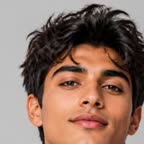
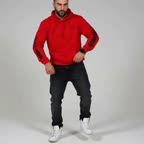
- Two photos, one per person. Clear, front-facing or slightly turned faces, no sunglasses, no hands over the face, no heavy filters. We generated two fictional people instead of using real ones.
- A motion clip of the scene, about 13 seconds, ideally a line-art (outline) version. More on why below.
- A video model that accepts several images and a reference video in one request. We used Seedance 2.5, which takes up to 30 reference images and 10 reference videos. In FunGen it’s available on the Creator plan.
- Cost: at FunGen’s current prices, one 13-second Seedance 2.5 clip at 480p is about 247 credits, plus a few credits for the two character sheets, so roughly 250 credits for one successful run. That estimate doesn’t include the original photos, a first attempt or any retries. (Our own tests called the API directly, so no FunGen credits were charged.)
Step 1: Start with two clean photos
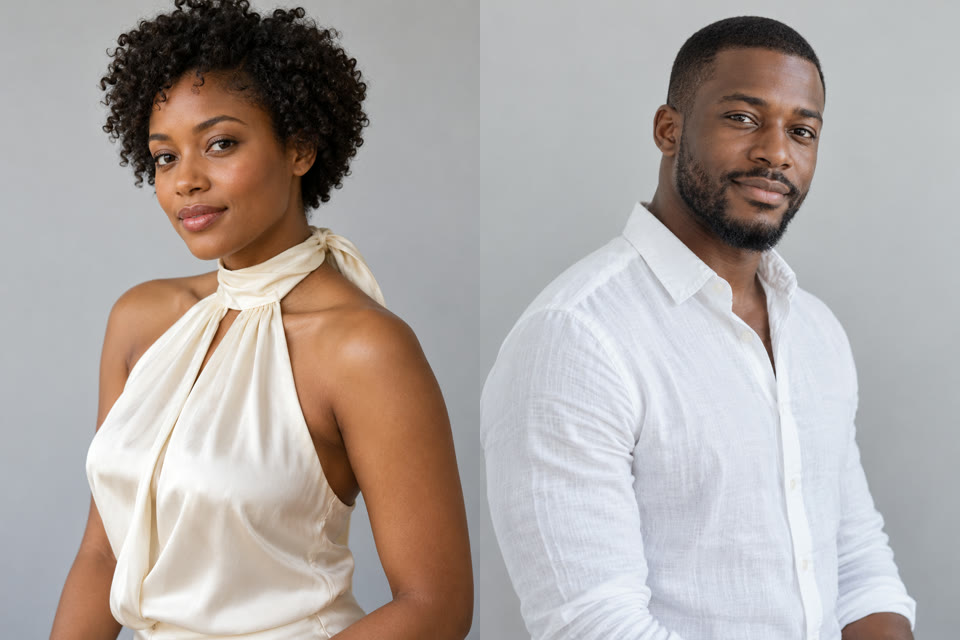
Use one clear waist-up photo per person on a plain background. If one photo is much weaker than the other (dark, blurry, half the face hidden), retake it: the model has less to hold on to for that person.
A note on real faces. Face-reference requirements vary by provider and model version. For example, APIYI’s Seedance 2.0 documentation describes a liveness-verification and asset-registration process for real-person references. We have not verified whether the same requirements apply to the Seedance 2.5 route used here. Our two tests used fictional AI-generated people and succeeded; that does not establish whether real-person photos will be accepted. If your reference is rejected, check your provider’s requirements and supported verification options. Use only photos you have permission to use; changing the visual style does not guarantee acceptance.
These are the two photos we started from:
Step 2: Turn each photo into a character sheet
This is one of the two things we changed between our runs. A character sheet shows the same person from several angles with their hair and outfit fixed: a large front close-up, a three-quarter view, a side profile and a full-body shot.
We made each sheet from the photo with an image model, using this prompt (swap in your own hair and outfit details):
Character reference sheet of the exact same person in the input photo, same face, same hairstyle, same outfit. Plain light grey background, photorealistic, even soft studio light. Layout: large front-facing head-and-shoulders close-up on the left; on the right a three-quarter view, a side profile, and a full-body standing shot. Keep her short natural curly afro hair exactly as in the photo (short, rounded, not tied up). Outfit: cream silk halter top with a scarf tie at the neck, white wide-leg trousers, barefoot. No jewelry, no watch, no necklace, no earrings, no text or labels.
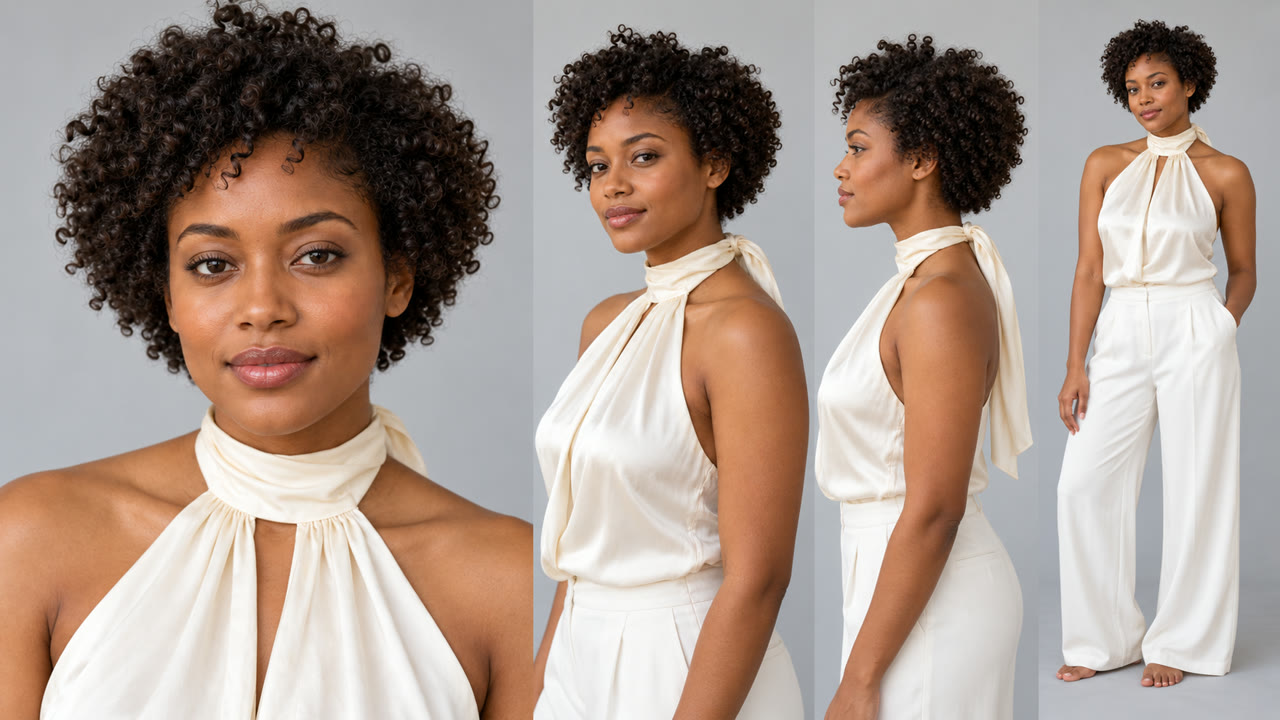
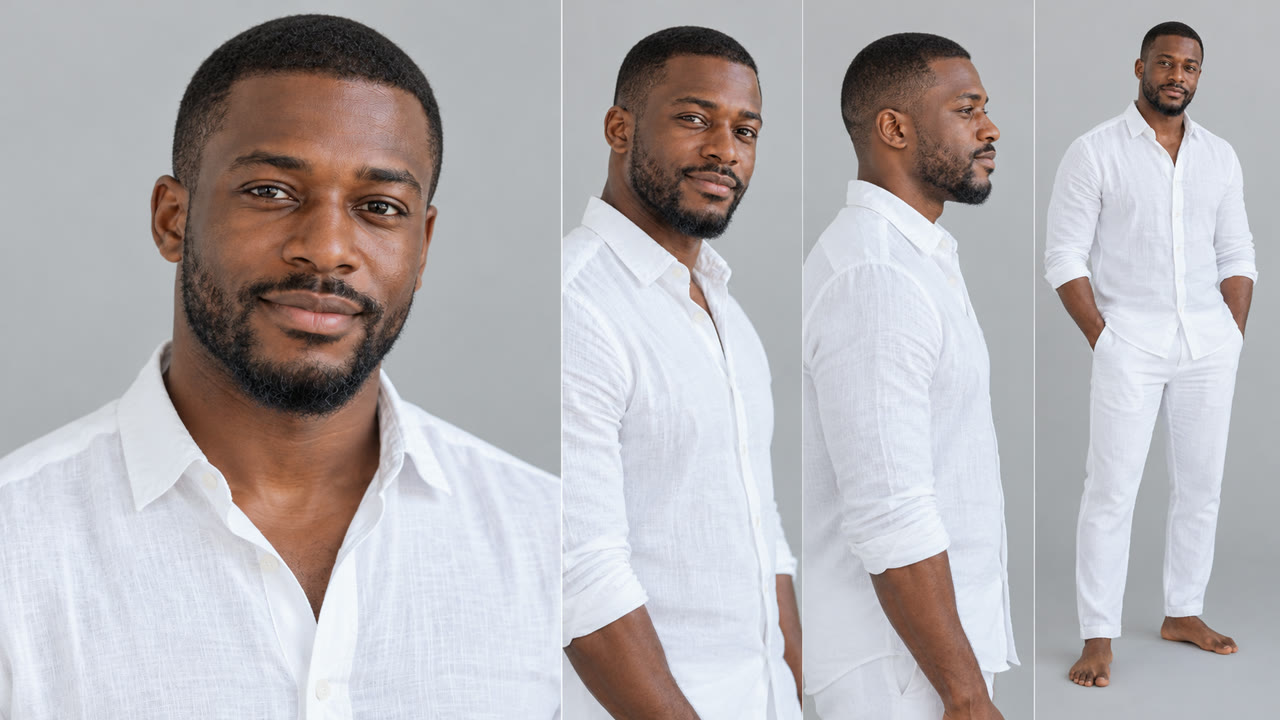
Decide the outfits here, not in the video prompt. If you leave clothing to the video model, it tends to drift between shots.
Step 3: Get a line-art motion clip of the scene
The video model only needs the movement, the cuts and the camera from the original. A plain black-and-white outline version of the scene keeps those and drops most of the color and texture. It still shows outlines of hair and accessories, so it reduces how much of the original look carries over, but it doesn’t eliminate it (our first run shows that).
We used the 13-second line-art clip offered for download in Kapwing’s tutorial. A downloadable clip doesn’t mean the underlying music video is cleared for every use, so check that you have the rights you need for where you’ll post.
Step 4: Generate the video
Give the model three things in this order: the first character sheet (image 1), the second character sheet (image 2) and the motion clip, with Seedance 2.5, 480p, 13 seconds, 4:3. Our sample was generated by calling the Seedance 2.5 API directly with exactly these inputs. In FunGen, the closest route is a project chat: it accepts image and video attachments, and you can ask for Seedance 2.5 with these settings. We haven’t run this exact recipe end to end through the chat yet, so check the result shot by shot.
The prompt we used:
Use the reference video only as a guide for motion, timing, blocking, cuts and camera movement; ignore its line-art drawing style and do not copy the hairstyle, accessories or appearance of anyone in it. Create a photorealistic live-action video of the same performance, shot by shot. Image 1 is the character sheet of the woman who sings toward the camera; image 2 is the character sheet of the man sitting on the wooden pier. The woman must keep her short natural curly afro exactly as in image 1 in every shot: short, rounded, never tied up, no updo, no long curls. The man keeps his close-cropped hair and short full beard from image 2. Both wear only the outfits shown on their sheets. No jewelry of any kind: no earrings, no necklace, no bracelets, no rings, no watch. Keep both faces identical to their sheets. Setting: a weathered wooden pier over calm water at golden hour, warm natural light. Do not add other people. Generate as one video with no text, captions or subtitles.
Replace the hair and outfit details with your own. Say which image is which role, as in “image 1 is the woman who sings”. Without that, the model can swap the two people.
In our run, the result followed the reference shot by shot: the man on the pier, the wide shot, the two-shot, the sung close-ups and the hand gesture at the end.

Why our first try drifted, and what changed in the second
Our first attempt used the two plain photos directly, with no character sheets and a shorter prompt. The motion was just as accurate, but the singer came out looking like someone else: her short afro turned into an updo with long curls, and earrings appeared even though the prompt said no jewelry. Her look had moved toward the performer in the original video.
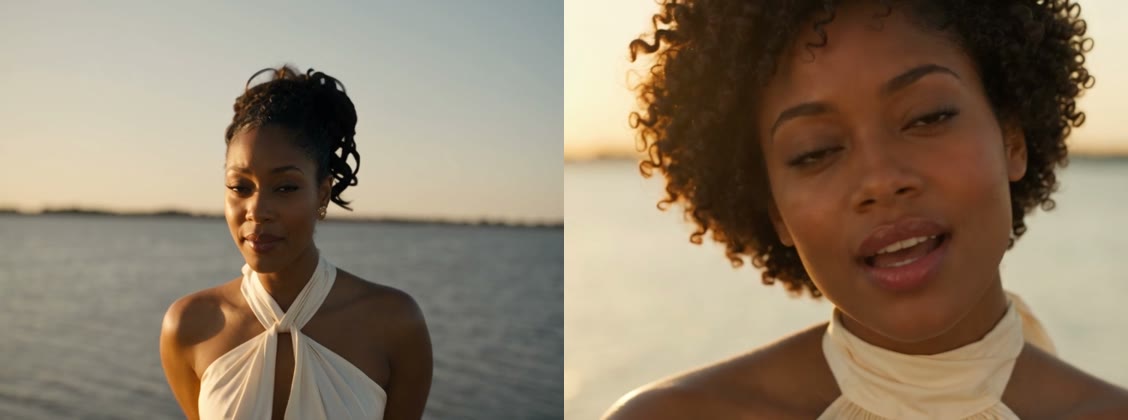
For the second run we changed two things at once, and the result improved:
- Character sheets instead of single photos, giving several angles of the same face, hair and outfit.
- A prompt that spells out what must not change: “short, rounded, never tied up, no updo, no long curls” instead of “same hair as in the photo”.
This is one comparison of two runs, and we changed both things together, so we can’t say which one mattered more. It’s also not a guaranteed fix. Even with “no watch, no necklace” in the prompt, the man picked up a thin chain and a watch in a couple of shots. If small details like that matter to you, check every shot before you post and re-run if needed.
Step 5: Add the song and post
- Add the music in the app you post to. Look the song up in the app’s sound library (availability varies by region and account type) and check that the platform’s music license covers your account and how you’ll use the post, especially for business or sponsored content. Pick the same section as the original scene, then slide your clip until the gestures land on the beats.
- Trim rather than speed up if your clip runs long. Changing the speed breaks the lip and hand timing.
- Turn on the AI-generated label where the platform offers one.
- Only use photos of people who agreed to it. That means your partner or friend, not a stranger or a celebrity.
Prompt tips
- Assign roles by image number. “Image 1 is the woman who sings; image 2 is the man on the pier.”
- Tell it to ignore the reference’s look. “Use the reference video only for motion… do not copy the appearance of anyone in it.”
- Describe the setting yourself. The line-art clip has no colors or light, so write the golden-hour pier into the prompt.
- Ask for no text. Otherwise you can get stray captions.
- Start at 480p. It’s the cheapest way to check that faces and roles are right. Re-run at a higher resolution once you’re happy.
More AI video trends to try
If you like this kind of scene swap, you can also swap characters in any video, try the viral AI baby dance video, or browse more AI video ideas.
Want to try it? Open a FunGen project, attach your two character sheets and the motion clip, paste the prompt above, and check each shot before you post.