








How to Make the Viral AI Flying Tesla Roadster Video (Step by Step)
The short version: Since Tesla’s Roadster demo in mid-October, a new kind of AI clip keeps showing up in short-video feeds: a car stuck in traffic fires up thrusters, lifts out of the jam and flies off. You can make one from a single photo — below is exactly how we made the one in this post, prompts and settings included.
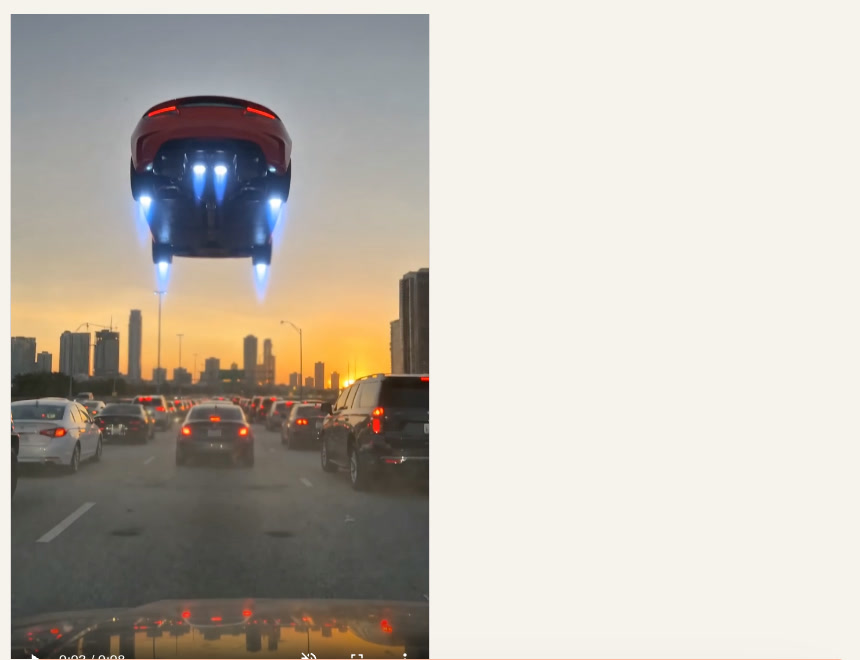
The clip we made for this guide: one generated photo, one image-to-video pass, 8 seconds, no editing. This is a fictional, unbranded AI car — it is not a Tesla and has no affiliation with Tesla.
Why everyone is making flying-car videos right now
Tesla reportedly showed an airborne stunt with the new Roadster at an event on October 15 (TechRadar has the details). A short hop at a demo is very different from a car cruising over a traffic jam — but the footage got people asking whether the clips they were seeing were real, and AI versions followed: “day 1 of owning a Roadster” (the car leaves the traffic jam and lands on the moon), “a Roadster stole my parking spot,” and many more.
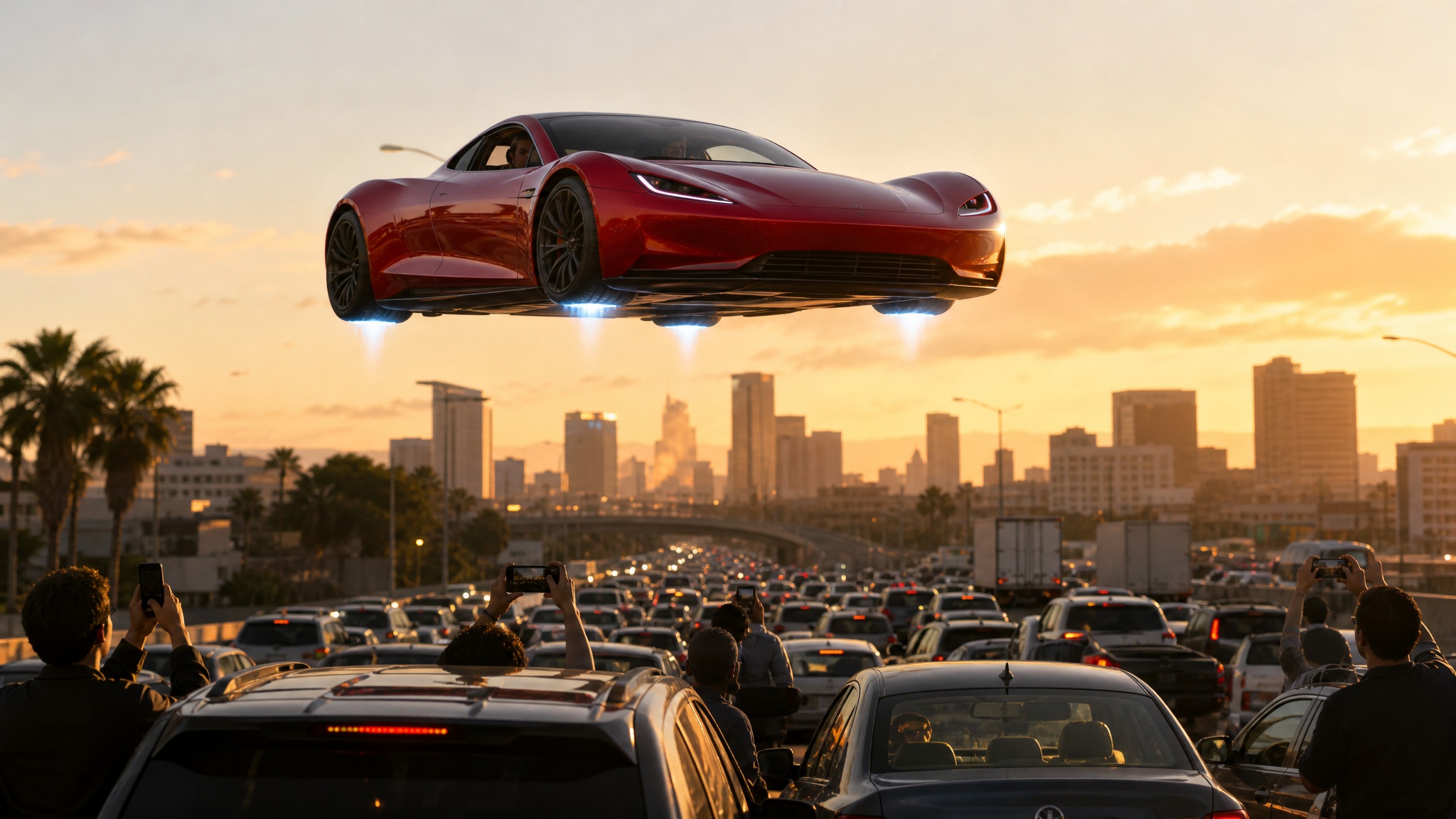
It works as content for the same reason any good trend does:
- The first second is the hook. A normal traffic jam, then a car goes vertical. Nobody scrolls past that.
- It plays on a real news moment. The demo is fresh, so viewers are already primed for a flying-car clip.
- Everyone has the setup. Everybody has sat in traffic. The fantasy of just flying out of it needs no explanation.
- It’s endlessly remixable. Your own car, your street, your commute, a different ending every time.
What you need
- One photo. A traffic-jam shot from behind the wheel works best — your own, or one you generate (that’s what we did, so no real people or plates are in it).
- An image-to-video model. It animates your photo, keeps the scene, and adds the motion you describe.
- Credits: in our run, the 2K starting image cost 3 credits and the 8-second Seedance Fast clip about 168, so roughly 171 credits for the whole tutorial. The exact price is shown before you generate. Eligible new accounts get 100 free credits, plus up to 200 more for reaching creation milestones — check your account’s balance.
Step 1: Get your starting photo
If you have your own dashcam or phone photo of a traffic jam, skip to step 2. We generated ours so the car is a clean, unbranded red roadster in the middle lane.
In the FunGen Generator, choose Image, open the settings, pick 9:16 (vertical, for TikTok/Reels/Shorts), 2K, and GPT Image 2, then paste the prompt:
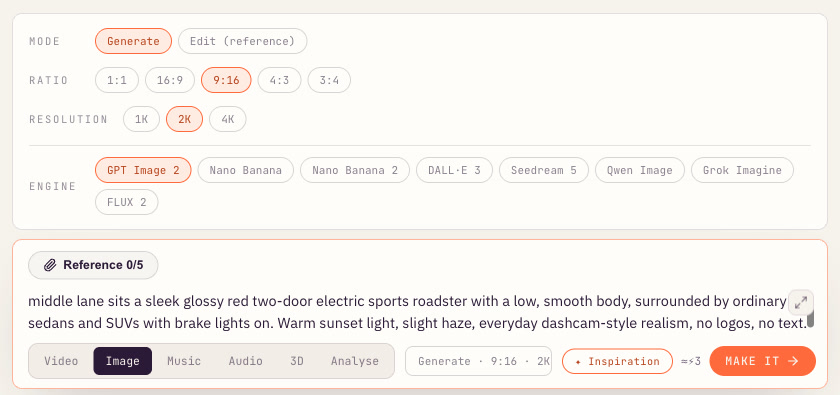
Realistic vertical smartphone photo taken from a car behind, in a gridlocked city highway traffic jam at golden hour. In the middle lane sits a sleek glossy red two-door electric sports roadster with a low, smooth body, surrounded by ordinary sedans and SUVs with brake lights on. Warm sunset light, slight haze, everyday dashcam-style realism, no logos, no text.
Hit Make it. In our test, the starting image took about 20 seconds:
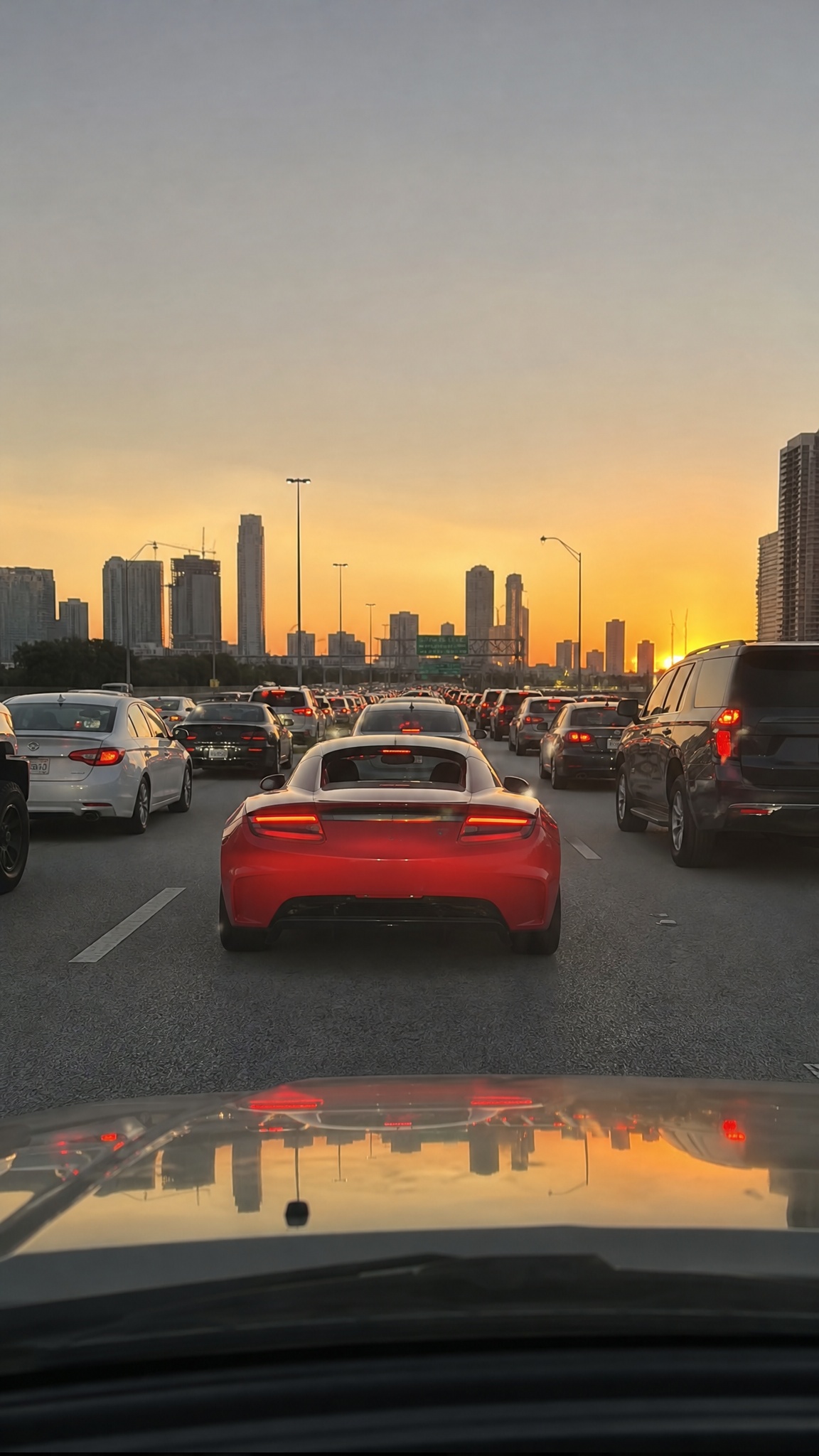
Why this framing works: shooting from the car behind puts the roadster dead center with open sky above it — that empty space is where the car will fly. A busy, realistic jam makes the lift-off feel real.
Step 2: Turn the photo into the flying clip
Switch the Generator to Video and set:
- Mode: Image to video (first frame)
- Duration: 8s — long enough for lift-off, hover, and fly-away
- Format: Portrait 9:16
- Engine: Seedance Fast (good motion for the price; the bigger engines are available on paid plans)
Attach your photo as the reference (it becomes the first frame), then describe the motion:
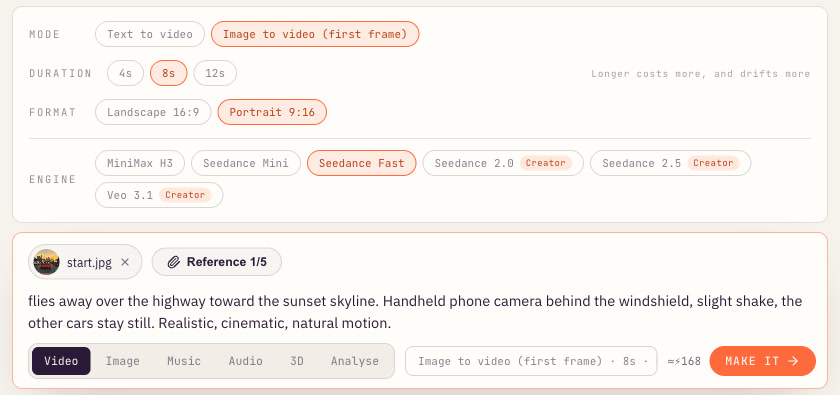
The red roadster in the middle lane suddenly rises straight up out of the traffic jam: small thrusters glow blue under the body, dust and heat shimmer blow across the lanes, it hovers for a beat above the stopped cars, then tilts forward and flies away over the highway toward the sunset skyline. Handheld phone camera behind the windshield, slight shake, the other cars stay still. Realistic, cinematic, natural motion.
In our test the clip took just over two minutes to render. The thrusters light up, the car climbs out of the lane, hangs in the air, and shrinks into the skyline — on the first try:
Prompt tips that make or break it
- Describe the motion in order. “Rises → hovers → tilts → flies away” gives the model a timeline. One vague verb (“flies”) gives you a wobbly blur.
- Freeze everything else. “The other cars stay still” stops the whole highway from melting into motion.
- Name the camera. “Handheld phone camera behind the windshield, slight shake” sells the “I filmed this from my car” feeling that makes the format believable.
- Add one physical detail. Blue thrusters, dust, heat shimmer — a single concrete effect makes the lift-off feel real.
- Keep it 8 seconds. Shorter clips cut off the fly-away; longer ones tend to drift.
Ideas to remix the trend
- Day 1 of owning a Roadster: end the prompt with the car landing on the moon or on a rooftop.
- It stole my parking spot: start from a parking-lot photo and have a flying car drop into the last open space.
- Your own car: use a photo of your own car in traffic and let it take off instead.
- The reaction cut: put the AI clip after a few seconds of you “sitting in traffic” for a before/after punchline.
Post it the right way
- Post vertical (9:16) and put the lift-off in the first second — trim the start if you need to.
- Turn on the AI-generated label on TikTok, Instagram or YouTube. The format plays on “is it real?”, so be upfront that yours is AI, and check each platform’s own rules.
- Use footage you have permission to use, and blur license plates and bystanders who aren’t part of your video. Generating the starting photo, like we did, avoids real plates and people entirely.
- Ride the timing. Trends like this peak fast after the news moment that sparked them, so post while the topic is still fresh.
More AI video trends to try
The same one-photo, image-to-video recipe powers most short-form AI trends. For more formats, see our list of AI video ideas, the viral AI baby dance video trend, or how to make a photo talk with AI.
Ready to make yours? Open the FunGen Generator, drop in a traffic photo, and paste the prompts above.