












How to Make an AI Music Video (2026): From Song to Finished Video
Short answer: to make an AI music video, you upload or describe your song, pick a visual style, generate scenes that match the mood, and sync the cuts to the beat. AI can take a track with no budget and turn it into a stylized, release-ready video in an afternoon. This guide covers the workflow, the styles that work, and how to make the visuals actually feel connected to the music.
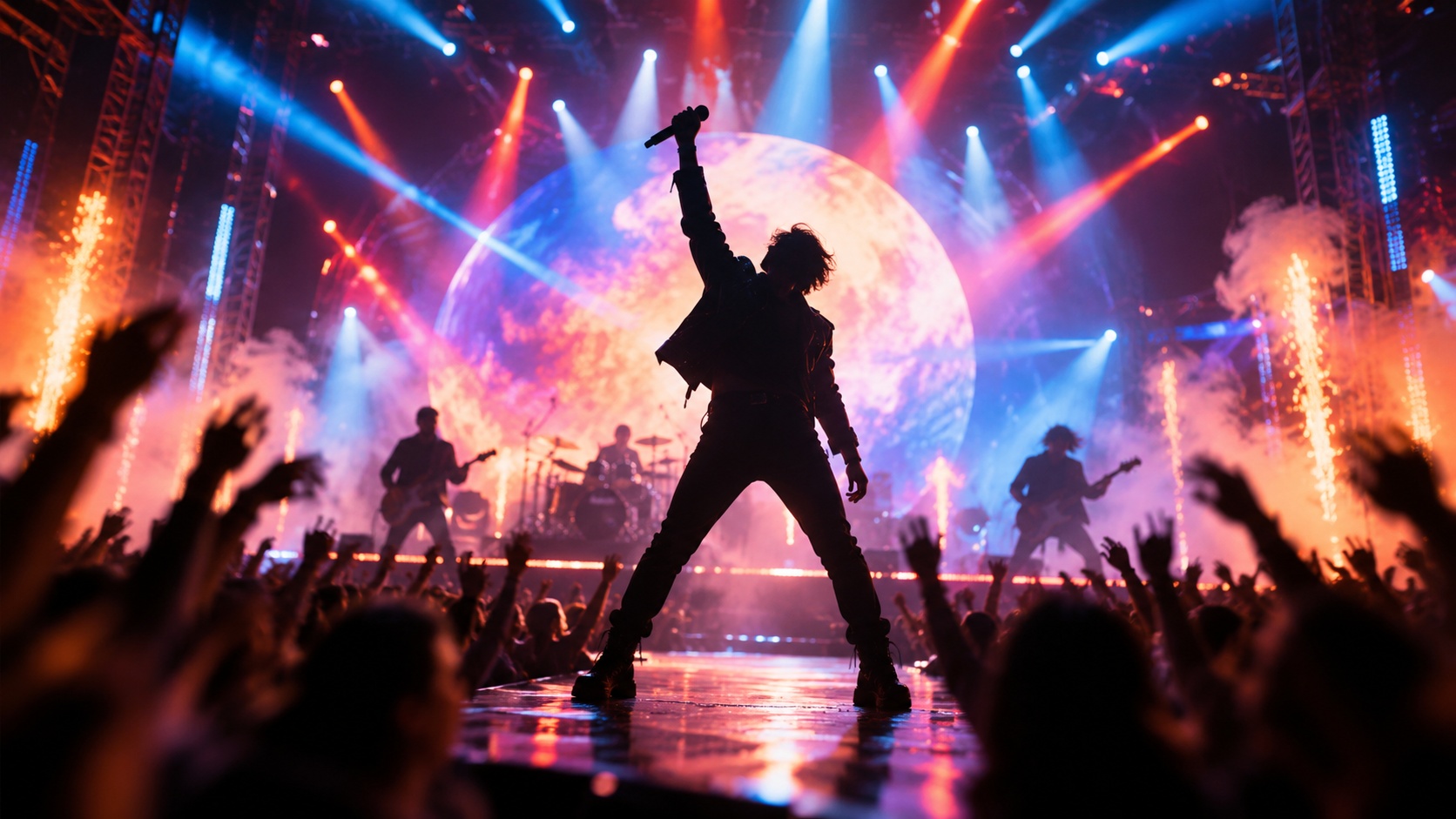
The core idea: match visuals to the music, not the lyrics
The most common beginner mistake is illustrating the words literally — a video that just shows whatever the lyrics say. Great music videos match the mood and energy of the track, not its dictionary meaning. A melancholy song wants slow, dim, lingering shots; a high-BPM track wants fast cuts and saturated color. Decide the emotional register first, and every visual choice follows from it.
Step 1: Start from your song
Begin with the finished audio. If you wrote the track in a tool like Suno or recorded it yourself, that’s your anchor — the length, structure, and tempo of the song define the video. Listen through once and note the sections: intro, verse, chorus, bridge. Those are your scene boundaries.
Step 2: Pick a visual style
This is the decision that defines the whole video. A few styles consistently work for AI music videos:
| Style | Best for | Start with |
|---|---|---|
| Performance / idol stage | Pop, upbeat tracks | AI Idol MV Generator |
| Mixed-style remix | Genre-blending, experimental | AI Music Video Generator |
| Choreographed / animated | Electronic, dance | AI Dance Video Generator |
| Song-to-video, full track | Any genre, finished song | AI Music Video from Song |
Pick one and commit — a consistent look across the whole video reads as intentional, while switching styles randomly reads as unfinished.
Step 3: Generate scenes section by section
Build the video in the sections you noted earlier. Give each section a distinct visual beat while keeping the overall style consistent: maybe the verses are intimate and close, the chorus opens up wide and bright. This rise-and-fall is what makes a music video feel composed rather than a loop of random clips.

Step 4: Sync the cuts to the beat
This single step separates a real music video from a slideshow. Cut on the beat — line up your visual transitions with the downbeats and the moments the music shifts. When the chorus hits, the visuals should hit too. You don’t need perfect frame accuracy; even roughly matching cuts to the rhythm makes the whole thing feel alive. Tighten the edit until the video breathes with the song.
Step 5: Export and release
Export at the resolution your platform wants — vertical for TikTok and Reels, horizontal for YouTube. For a song release, a horizontal YouTube version plus a vertical Shorts cut of the catchiest 30 seconds gives you two uploads from one project.
Making an AI music video for your own song
If you’ve got an original track, this is the fastest way to give it a visual home. You don’t need a label, a crew, or a location. The workflow above takes a finished song to a finished video in a single session, which means you can release a video with every track instead of letting songs sit audio-only. For independent artists, that’s the difference between a song that gets discovered and one that doesn’t.
Common mistakes
- Illustrating lyrics literally. Match mood and energy, not words.
- No beat sync. Cuts that ignore the rhythm make even great visuals feel flat.
- Switching styles mid-video. Pick one look and hold it.
- One energy level throughout. Build contrast between verse and chorus so the video has a shape.
Where this fits
A music video is one of the most sellable AI video formats — see how to make money with AI videos for how making videos for independent artists works as a paid service. When you’re ready, start from the AI Music Video from Song format, or browse the full AI video skills library.