











AI UGC Video Generator: How to Make UGC-Style Ads with AI (2026)
Short answer: an AI UGC video generator turns a product photo and a short script into a video that looks like a creator filmed it on a phone: a person talking to the camera about the product. With FunGen you can do it two ways. Upload a presenter photo (ideally one that already shows the product) to AI Lip Sync and type the script for a quick talking-head clip, or start the Digital Human Product Promo skill and let the agent plan the whole ad with you.
Cover image is the skill’s style illustration, not a frame from a video made in this guide.
UGC (user-generated content) style ads feel less like ads: someone in a normal room talks about a product the way a friend would. AI can produce that look, but it works best when you keep it simple. Common problems are a look that’s too polished, a script that sounds like a press release, or a presenter who never shows the product.
What makes a UGC video look like UGC
Before you generate anything, decide on these four things:
- One person, one room. A kitchen, a bathroom mirror, a desk, a car seat. Don’t change locations mid-video.
- Phone framing. Vertical 9:16, chest-up or closer, slight handheld feel, natural light. Skip the studio lighting.
- A real reason to talk. A problem the viewer has, then the product as the fix.
- The product on screen. In the hand, on the counter, in use. Make it clear early what the video is about.
Step 1: Write a hook-first script
A 20–30 second UGC script usually has four parts:
- Hook (first 2 seconds): a line that stops the scroll. “Need a softer light for your bedside table?”
- Problem: one sentence the viewer recognizes. “Most bedside lamps are either too dim or way too bright.”
- Product moment: what it is and the one thing it does better. Show it.
- Call to action: “Link’s below if you want to try it.”
Write the way people talk: short sentences, contractions, no feature lists. Read it out loud once. If you run out of breath, cut it. Around 60–75 words fits 25–30 seconds.
If you’d rather not write it yourself, describe the product and the audience to the FunGen agent and ask for three hook options. Pick one and edit it.
Step 2: Create the presenter
You need a presenter image that looks like an ordinary person filmed on a phone, not a model in a photo shoot. Three options:
- Your own photo or a photo of a creator who has agreed to it.
- A generated presenter. In the Generator, describe age, style, room and lighting, for example: “woman in her late 20s, casual hoodie, sitting at a kitchen table, morning window light, front-facing phone camera, natural skin, no makeup filter.”
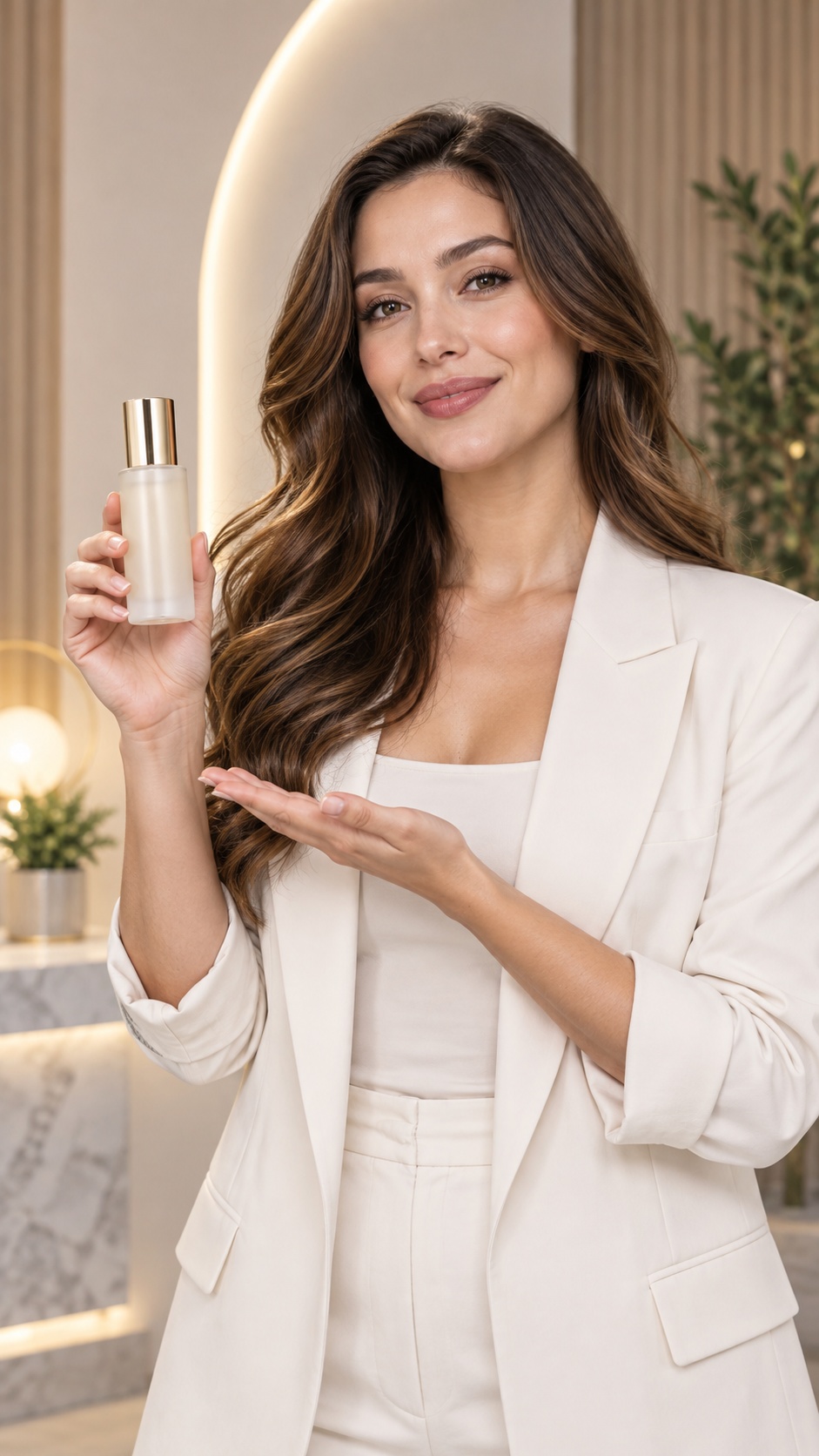
- A presenter holding your product. Upload your product photo as a reference and ask for the presenter holding it. This is the single image the whole video is built from, so take time to get it right.
Check the hands and the product label before you move on. Those are where image models make mistakes.
Step 3: Add the voice and make it talk
The quickest route is AI Lip Sync:
- Upload the presenter image.
- Type the script and pick a voice, or upload your own recording (MP3, WAV or M4A, up to 60 seconds).
- Choose 720p or 1080p Pro and generate. The page shows the cost before you start: 11 credits per second at 720p and 21 at 1080p, so rendering a 25-second 720p clip is 275 credits (a typed script adds a small voiceover charge).
This gives you one continuous talking-head shot. Lip sync animates the face and voice; it doesn’t make the presenter demonstrate the product, and the product in the image may shift slightly. If you need hands-on product shots, use the agent below.
Step 4: Go further with the agent (optional)
If you want more than one shot, such as a close-up of the product, a before/after, or an unboxing, start a project from a skill:
- Digital Human Product Promo: a presenter talking about your product in one fixed scene, with a script, voice and background music.
- Unboxing Review Recommendation Ad Video: unboxing, quick review, side-by-side comparison or “in daily life” styles, in 30, 60 or 90 seconds.
Upload your product photos when the agent asks. It writes a spec, then a storyboard, then generates the images, shots and audio, and asks you to confirm at key stages so you can change the plan. Generation steps that have already run use credits. Some video models used by these skills need a Creator plan; the agent tells you what’s available on yours.
Step 5: Review it like a viewer
Watch the result on your phone, with the sound on, and check:
| Check | What to look for | Fix |
|---|---|---|
| First 2 seconds | Is the hook clear without context? | Shorten the hook line |
| Product | Label readable, shape right, no extra fingers | Regenerate the presenter image |
| Mouth | Lips close on “p”, “b”, “m” | Use a sharper, front-facing image |
| Tone | Sounds like a person, not an announcer | Pick a more casual voice or record your own |
| Length | Under 30 seconds for most placements | Cut the middle, not the hook |
Add captions in your editor or the platform’s tool, since many people watch with the sound off.
Keep it honest
AI UGC is a format, not a real customer review. Some ground rules:
- Don’t invent customer experiences. Don’t write “I’ve used this for six months” for a person who doesn’t exist, and don’t present an AI presenter as a real customer. Labeling the video as an ad or as AI doesn’t make a made-up testimonial OK.
- Follow platform labeling rules. TikTok, Meta and YouTube have rules on AI-generated and realistic synthetic content. Check them before you run ads.
- Only use faces you have rights to. Your own, a creator’s with written permission, or a generated one.
- Back up your claims. Everything the script says about the product needs to be true and supportable.
Try it
Open AI Lip Sync, upload one presenter photo and paste the first two lines of your script. New accounts get 100 free credits, enough for a short test clip, so you can see whether the presenter works before you write the full ad.